Correct Donations
Correct a donation to make a change to the information originally entered. Common types of corrections include;
-
A donation amount or check number was miskeyed.
-
The donation was supposed to have a designated giving account.
-
A check was returned due to insufficient funds.
If the donation was assigned to the wrong giver, but all other information is correct, you can Transfer Donations.
Access Browse Donations
To access from the Button Bar, go to Donations > Browse Donations.

To access from the Home Screen, go to the Quick Access Button.

Browse Donations displays all transactions in a grid-style set up. You can filter the donations and decide how you want them to display.
Correct a Donation
-
Locate the donation in the Browse screen. If needed, filter using Change Dates, Filter & Sort.
-
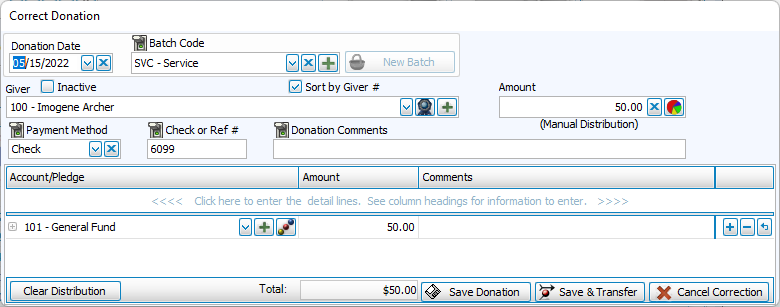
Click Correct
-
Make changes and comments.
-
Click Save to post the correction to Donations. Click Save and Transfer to post in Donations and continue to the Transfer to Accounting.
Reverse a Donation
Reversals are a permanent way of removing a transaction while still maintaining a solid audit trail, as opposed to a deletion. Reversals are often hidden in Browse screens and reports, but can be included by checking a box to Include Reversed Transaction or Donations.
-
Locate the transaction in Browse.
-
Click
 .
. -
We recommend reversing on date occurred, but a different date can be selected from the Advanced Options tab.
-
Add comments about the nature of the reversal.
-
Click
 .
.